


Here are a few features in this version:
Request Permission - You can ask permission before connecting, or better yet you can force your IT administrators to ask permission. I know many of you have been looking for this feature. CEOs don't like IT staff just jumping into their system while they could be working on sensitive documents - this will keep them at ease when you tell them you want to use Remote Administration software. When the option is enabled, the remote side is prompted with a window that looks like this:
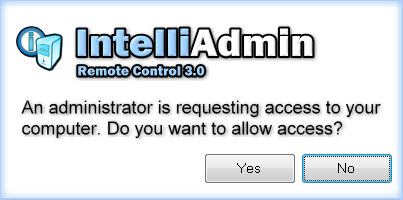
If the user rejects you, you will be told to try again later. If they accept it will immediately give you access to the remote system.
Windows User Accounts - Limiting remote administration access to computers is an important aspect to your IT policy. Remote Control allows you to use Active Directory security groups, or single user names to grant access to a machine. Remote Control provides a fine level of control. For any group, or username you can force specific features:
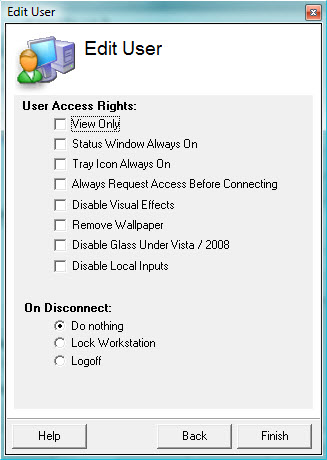
This can be especially helpful in environments that require strict regulatory compliance. For example, you could require that all of your IT administrators request access before connecting, and always show a status window. That way the end user always knows when an administrator is working on their machine.
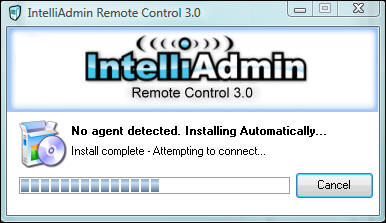
Never Install an Agent - Our Remote Control Client can install and agent for you. If you can connect to the machine on your LAN, Remote Control 3.0 will automatically install the agent and give Windows Administrators access by default:
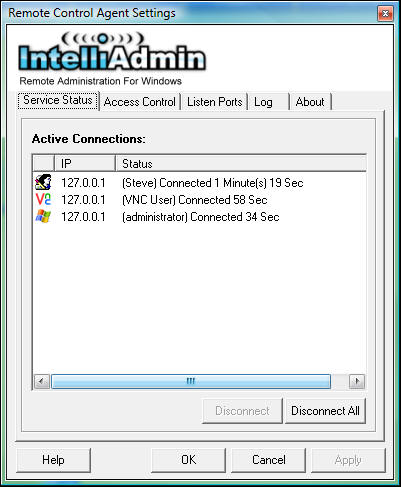
Visual Status Indicator - With some remote control solutions, it can be difficult to see who is connected. It is easy to see who, and how long a user has been connected in Remote Control 3. Just take a peek at the agent settings window and you can see right away:
That's all I have for now, take it for a spin and download our 15 day trial:

Posted By: Steve Wiseman on Friday, November 14, 2008
Check out our utilities for windows